
Now Reading: How Do I Use Instagram Suggestions in 2026?
1
-
01
How Do I Use Instagram Suggestions in 2026?

How Do I Use Instagram Suggestions in 2026?
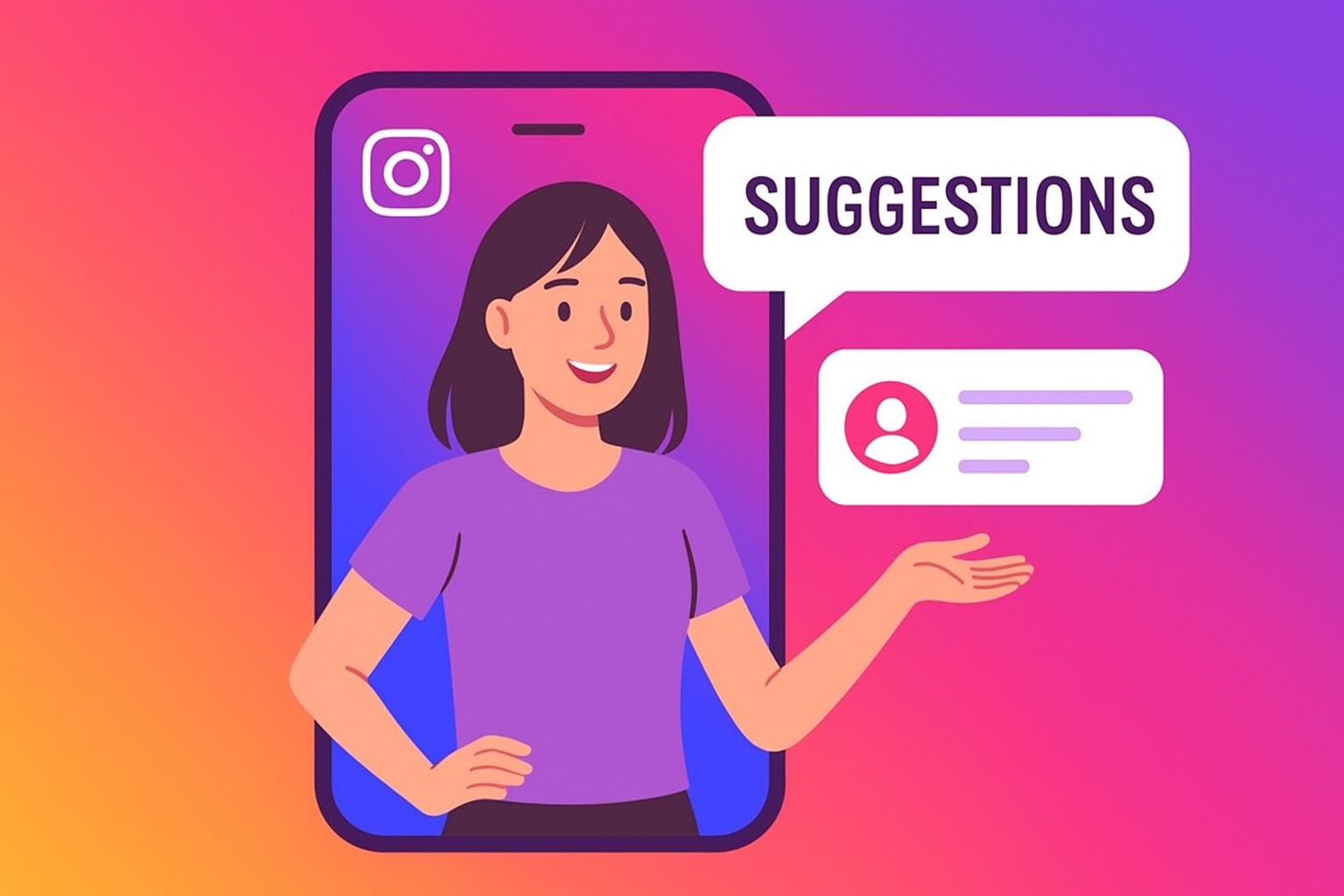
If your Instagram feed is filled with posts and accounts that don’t interest you, it may feel overwhelming, and you might be asking, “How do I stop suggestions on Instagram in 2026?”. Instagram suggests content to personalize your experience, but sometimes, these suggestions miss the mark, showing you irrelevant posts and unwanted ads. If you want to stop or manage them, this guide will help you take control and see only what matters to you. Discover practical steps to turn off Suggested Posts, adjust your settings, and create a feed that genuinely reflects your interests.How to Turn Off and Remove Suggested Posts on Instagram in 2026?
Instagram suggested posts show up in your home feed after the “You’re all caught up” message. They’re from accounts you don’t follow but that Instagram thinks you might like, based on your likes, follows, interactions with similar accounts, and even your Facebook friends, to help you discover new content. Let’s learn all about what you can do to stop suggestions on Instagram in 2026.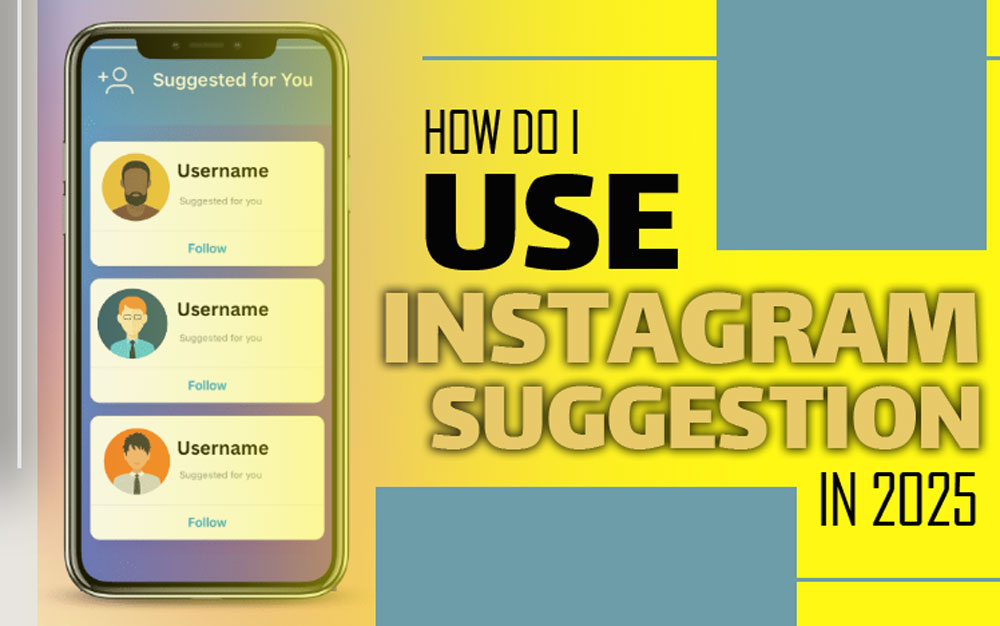
Use the “Not Interested” Option to Remove Suggested Posts
This quick feedback tool lets you tell Instagram which suggested posts you don’t want to see. Using “Not Interested” is a straightforward way to refine your feed without changing other settings. To remove unwanted suggested posts, follow these steps:- Scroll through your Instagram feed until you find a suggested post. It will appear after the “You’re all caught up” notification.
- Tap the three dots on the top right corner of the suggested post.
- Select Not Interested from the menu.
- Instagram will stop showing you posts from that particular account or similar content.
Remove Suggested Users
Apart from posts, the platform also suggests new accounts to follow in sections labeled “Suggested Users” or “Instagram Suggested Friends.” To delete them:- In the Instagram app, scroll to the Suggestions for You section on your feed or profile page.
- Click on the x symbol to delete suggested users.
- For multiple suggestions, tap See All and remove unwanted accounts one by one.
Turn to a Private Instagram Account
Switching to a private account is one way to control your feed better and stop suggestions on Instagram. When your profile is private:- Your feed becomes more focused on the people you follow.
- The number of suggested posts may reduce, as Instagram limits suggestions for private accounts.
- Go to Settings > Privacy.
- Toggle on Private Account to turn off Instagram feed suggestions for your Instagram profile.

Turn Off Discover People on Instagram
If you want to turn off account suggestions on your profile and reduce follow recommendations, disabling Discover People is an effective way to regain control over your Instagram experience:- Click your profile picture on the left to go to your profile
- Under your profile picture, look for the Discover People option.
- Tap the person icon next to this option (it will initially appear black).
- Once tapped, the icon will turn white, indicating the feature has been turned off.
Reset Your Instagram Algorithm in 2026
For deeper customization, managing and resetting your suggested content preferences lets you take control of what Instagram shows you, including filtering sensitive content and clearing your suggestion history:- Go to your profile and tap the menu.
- Open Settings and activity.
- Scroll to What you see and select Content preferences.
- Find and toggle Reset suggested content.
- Use Instagram sensitive content filters to limit sensitive or political content.
- Blacklist words on Instagram to block posts containing specific phrases.
- Adjust the Instagram political content filter to control political posts in your feed.

Use Techniques for Managing Instagram Algorithm Suggestions Without Resetting
If you’re not ready to reset your entire Instagram algorithm, try these alternative techniques to gently steer your feed toward what you want to see while avoiding unwanted content:- Snooze Suggested Posts for 30 days: Temporarily hide suggested content Instagram in your feed for 30 days through Instagram settings under Content suggestions.
- Turn Off Suggested Notifications: Disable notifications about new account suggestions in the Notifications settings.
- Clear Instagram Cache: Removing stored data helps refresh your Instagram feed, improve app performance, and block Instagram suggestions.
- Mute Profiles: Use the Instagram mute feature to hide posts or stories from certain accounts without unfollowing them.
- Follow Relevant Accounts: Engage with profiles that genuinely interest you to help the algorithm learn your preferences faster.
- Use Instagram Search Function: Actively searching for hashtags or topics helps diversify your Instagram Explore page.
- Interact More: Likes, comments, and shares signal to the algorithm what content you want to see.
How to Prevent Instagram from Suggesting Your Account?
If you don’t want your profile to appear in other users’ suggestions (Similar Account Suggestions on Instagram), you can disable it:- Open Instagram in a web browser (such as Chrome, Firefox, or Safari) on your computer or mobile device. The mobile app doesn’t currently offer this setting.
- Log in to your account if you haven’t already.
- Click your profile picture at the top right to go to your profile, then click the Settings gear icon.
- Navigate to Privacy and Security from the menu on the left.
- Scroll down until you find the option labeled Similar Account Suggestions.
- Uncheck the box next to this option. By default, it’s enabled, meaning Instagram includes your profile when suggesting accounts similar to those that your users follow.
- Once unchecked, your profile will no longer appear in the “Suggested for You” lists on other people’s feeds or profiles, helping you maintain more privacy and control over your account’s visibility.
Ending Notes
Taking control of your Instagram suggestions is essential for a more enjoyable, personalized experience on the platform. While Instagram’s algorithm aims to show you content you might like, it doesn’t always get it right. By using the tools and techniques outlined in this guide on “How to Stop Suggestions on Instagram in 2026”, you can significantly reduce irrelevant content and tailor your feed to your interests. Start applying these tips today and enjoy a cleaner, more relevant Instagram feed. Your turn! Please tell us how you customize your Instagram suggestions and clean up your feed. Comment below and help others take control, too! How can I stop Instagram from suggesting my account in 2026?
Adjust your privacy settings to reduce how often your profile shows up in suggestions.
How do I stop Instagram from showing what I like in 2026?
Using “not interested” on posts helps Instagram learn what to show less of.
How do I clear Instagram search suggestions in 2026?
Clearing your search history can stop suggestions on Instagram.
Can you turn off follow suggestions on Instagram stories?
You can’t fully turn them off, but disabling “discover people” helps.
How can I remove dm suggestions on Instagram in 2026?
Remove unwanted suggested users by tapping the X next to their names in DMs.
How can I stop Instagram from suggesting my account in 2026?
Adjust your privacy settings to reduce how often your profile shows up in suggestions.
How do I stop Instagram from showing what I like in 2026?
Using “not interested” on posts helps Instagram learn what to show less of.
How do I clear Instagram search suggestions in 2026?
Clearing your search history can stop suggestions on Instagram.
Can you turn off follow suggestions on Instagram stories?
You can’t fully turn them off, but disabling “discover people” helps.
How can I remove dm suggestions on Instagram in 2026?
Remove unwanted suggested users by tapping the X next to their names in DMs.
Related Instagram Guides
For more context and next steps, these Notisave guides cover closely related Instagram questions and tools.
- How to Turn Off a Business Account on Instagram? (2026 Ultimate Guide)
- How to Make Your Instagram Account Private? [Protect Your Privacy NOW]
- How to Appear Offline on Instagram? (2026 Guide You Need)
- How to Add Location on Instagram Bio?
- Instagram Private Downloader
Also read: How to Find Live Videos without Following on Instagram? (Actionable Tips & Tricks).










Related Posts


Stay Informed With the Latest & Most Important News
Previous Post
Next Post





Loading Next Post...