
Now Reading: How to Unhide Comments on Instagram? (Fix Low Engagement Fast)
-
01
How to Unhide Comments on Instagram? (Fix Low Engagement Fast)


How to Unhide Comments on Instagram? (Fix Low Engagement Fast)
Mastering “How to Unhide Comments on Instagram?” is essential. Without audience feedback, you miss out on valuable opportunities. You risk your engagement, trust with your followers, and potential growth, which weakens your connection with the community. Don’t conceal meaningful replies, questions, or customer interactions. Restore comments to Increase interaction and exposure and avoid risking your brand’s authenticity. Read the article to learn more about unhide Instagram comments.
- A shorter, concise summary table for your content:
| Topic | Key Points |
| Why Unhide Comments? | Restores engagement, trust, and brand authenticity. |
| How to Unhide? | Open post → Tap “View Hidden Comments” → Select comment → Tap “Unhide.” |
| Manage Comments | Turn comments on/off, limit comments, block users, and report/delete inappropriate ones. |
| Why Hide Comments? | Toxicity, off-topic, profanity, personal info, or for cleaner feed. |
| Limitations | No bulk unhide; deleted comments can’t be restored; no notifications sent. |
| Bonus | Use the Notisave.com to download and copy Instagram caption easily. . |
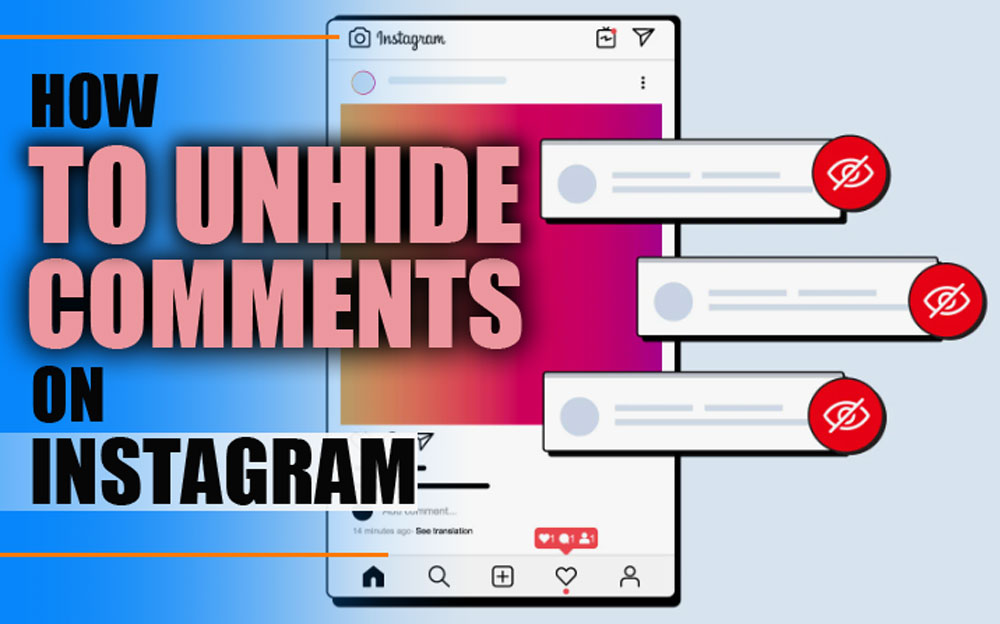
How to Unhide Instagram Comments?
The exciting news is that hidden Instagram comments aren’t deleted; they’re tucked away from public view. Both you and the original commenter can still access them.- Open the Post in the Instagram App: Log into your account and go to the Post where you think a comment is hidden.
- Tap “View Hidden Comments.” Below the visible comments, look for a message saying, “View hidden comments.” This indicates that Instagram has filtered or hidden comments due to spam, offensive content, or moderation settings.
- Scroll to Find the Comment: All hidden comments appear once you tap the link. Scroll through the list to locate the one you want to restore.
- Unhide the Comment: Tap the “Unhide” button under the specific comment. If prompted, confirm your action, and the comment will be publicly visible again.
How to Manage Instagram Comments Effectively?
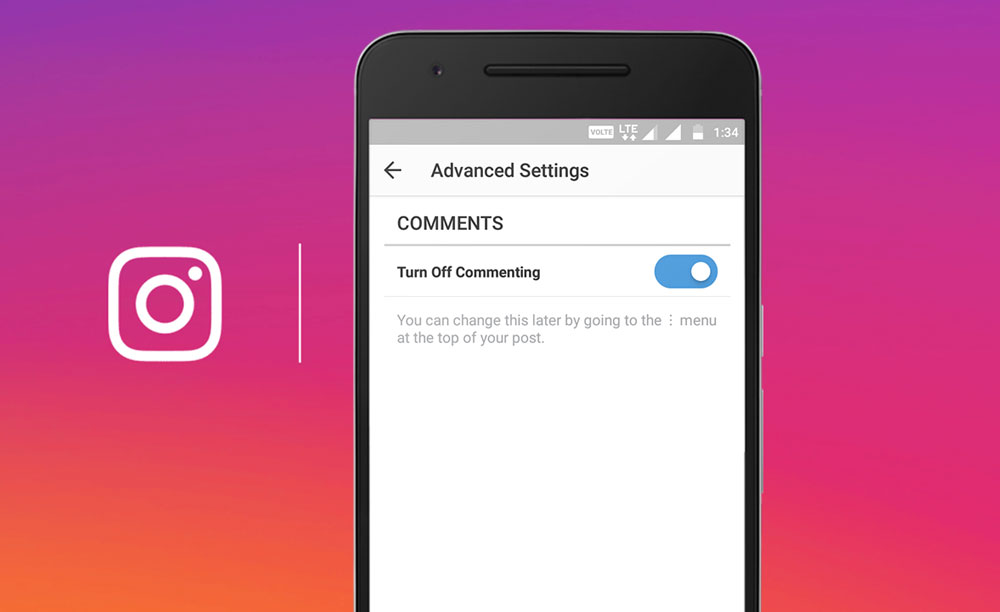
Managing comments is key to curating a positive Instagram user experience. Whether you want to limit spam, protect your brand, or enhance your Post’s aesthetic, Instagram offers robust tools to help you take control.v Turn Comments Off or On for Individual Posts
You can choose to disable or re-enable comments on any post. This is perfect for reducing noise or focusing engagement elsewhere.- Open the Post.
- Tap the three-dot menu in the top-right.
- Select Turn off Instagram comments or turn on commenting.
v Limit Instagram Comments Temporarily
This feature is excellent for moderating a post that’s gaining traction quickly. This will hide new interactions, letting you regain control over fast-moving Instagram discussions.- Tap your profile picture > Settings.
- Navigate to Privacy > Comments.
- Enable Limit Comments and set a timeframe.
v Block Specific Accounts from Commenting
Do trolls or spammy users? Here’s how to block their input. It helps keep your comment section constructive without completely turning it off.- Go to Settings > Privacy > Comments.
- Use Block Comments to find and restrict specific users.
v Delete or Report Inappropriate Instagram Comments
You can report comments that violate Instagram’s community guidelines or don’t fit your vibe. Use this feature to keep Instagram post interactions respectful and brand-aligned.- Swipe left on a comment.
- Tap Report or Delete as needed.
v Use Instagram Business Comment Settings (Manual Moderation)
Business and Creator accounts can manually review or filter comments. This is essential for Instagram brand management and building a positive Instagram community.- Go to Settings > Professional Dashboard.
- Select Comments under moderation tools.
- Enable options like comment approval, keyword filters, or hiding offensive content.
Why Comments Are Hidden on Instagram?
There are several reasons why Instagram might hide a comment, or you might want to do so manually. While this article walks you through why and how to unhide comments on Instagram, there are times when hiding is not just acceptable but smart.- Toxic or argumentative replies that hurt engagement
- Off-topic discussions distracting from your visual content
- Inappropriate Instagram comments or profanity
- Comments containing personal info
- To create a minimalist Instagram feed aesthetic
- To moderate tone and maintain a constructive comment section
Key Insights to Unhide Instagram Comments
Are you curious why some comments can’t be unhidden or why bulk unhiding isn’t an option? The table below provides clear answers to these common questions, helping you better understand the process and limitations of unhiding.| Topic | Details |
| Unhiding Comments | ü You can unhide comments on your posts unless Instagram or the user has deleted them. ü Comments on other posts cannot be unhidden. ü Instagram won’t notify the commenter. |
| Bulk Unhiding | ü There’s no way to unhide comments in bulk. ü Each comment must be unhidden manually. |
| Reasons for Inability | ü Comments may not be unhidden if deleted by the user or Instagram’s automated system. |
Final Thoughts
Instagram’s algorithm often values posts with active discussions, so understanding how to unhide Instagram comments can help boost your engagement, attract new followers, and keep conversations flowing. What’s your take on this? How are you managing your comments to enhance interaction and visibility on your posts? Feel free to share your ideas about “How to Unhide Comments on Instagram?” Can I unhide comments from any user on my posts?
Yes, you can unhide any hidden comment on your Post if it hasn’t been deleted.
Will the commenter be notified when I unhide their comment?
No, Instagram does not send notifications when a comment is unhidden.
Can I unhide comments on other people’s Instagram posts?
Only the post owner or original commenter can view or unhide hidden comments.
Is there a way to bulk-unhide Instagram comments?
Currently, there’s no built-in way to bulk unhide; you must do it manually for each comment.
How do I unhide hidden comments on Instagram?
You can go to the Post, tap “View hidden comments,” and select “Unhide” for the comment you want to restore.
Can I unhide comments from any user on my posts?
Yes, you can unhide any hidden comment on your Post if it hasn’t been deleted.
Will the commenter be notified when I unhide their comment?
No, Instagram does not send notifications when a comment is unhidden.
Can I unhide comments on other people’s Instagram posts?
Only the post owner or original commenter can view or unhide hidden comments.
Is there a way to bulk-unhide Instagram comments?
Currently, there’s no built-in way to bulk unhide; you must do it manually for each comment.
How do I unhide hidden comments on Instagram?
You can go to the Post, tap “View hidden comments,” and select “Unhide” for the comment you want to restore.
2026 Practical Update
Hidden comments can come from manual moderation, filtered words, account restrictions, or Instagram safety systems. If engagement suddenly drops, review comment controls before changing your content strategy. A small filter mistake can hide useful replies and make a post look less active than it really is.
Before You Try It
- Check hidden words and custom keyword filters.
- Review restricted and blocked account settings.
- Look at comment controls for the specific post.
- Ask a trusted account to test whether comments are visible.
- Remove overly broad filters such as common words or emojis.
Quick Answers
Can hidden comments hurt engagement? Yes. Fewer visible comments can reduce social proof and make a post feel less active.
Should I disable all filters? No. Keep safety filters, but remove terms that accidentally hide normal audience replies.
After changing comment settings, monitor the next few posts instead of judging the result immediately. Engagement may recover gradually as followers notice their replies are visible again. If comments remain low, compare reach, saves, and shares too, because the issue may be content distribution rather than hidden comments.
Related Instagram Guides
For more context and next steps, these Notisave guides cover closely related Instagram questions and tools.



















Abdul khaliq Lashkar
I used the Instagram Highlights Downloader
It was great
notisave
Thank you for your comments.
Suraj
Instagram Highlights Downloader
Suraj
Instagram DP profile Downloader