

Now Reading: How to Create a Second Instagram Account on Computer?
1
-
01
How to Create a Second Instagram Account on Computer?

How to Create a Second Instagram Account on Computer?
If you’re looking for an easy and fast way to Instagram multiple accounts on desktop, don’t miss this chance! Imagine managing your Instagram presence more professionally and keeping your personal and work profiles completely separate, all without ever picking up your phone. Now, with just a few clicks and entirely from your computer, you can set up a new Instagram account and have full control, without the usual hassle of using the mobile app. Join us as we walk you through the simplest and most effective method for “How to create a second Instagram account on a computer?”, giving you unparalleled control over your digital world. Ready? Let’s dive in!
Setting Up a New Instagram Profile from Desktop (Step- by -Step Guide)
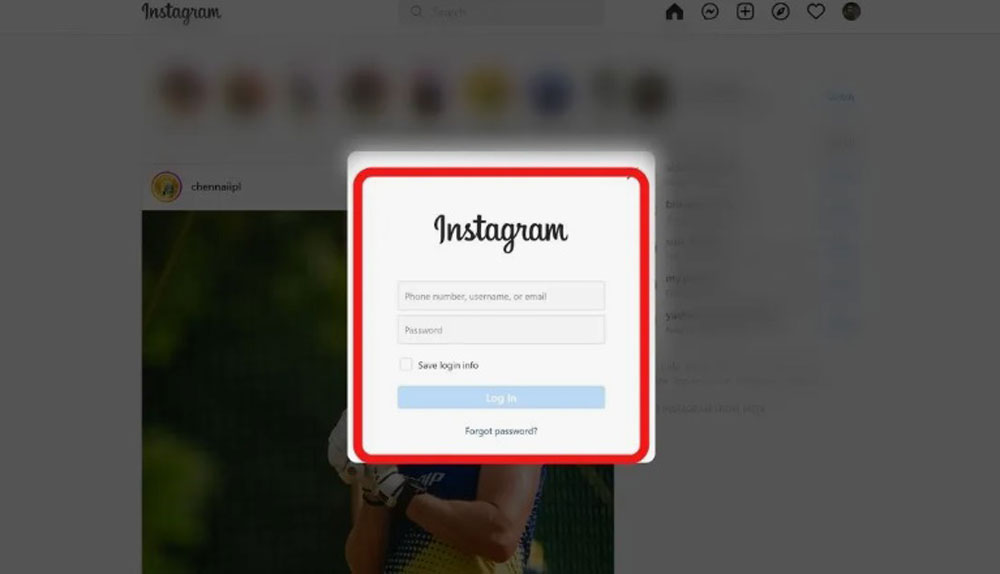
Although Instagram was originally designed for mobile, it doesn’t mean you can’t access its full range of features from your computer. By using the right methods, adding another Instagram account on PC becomes a simple task, allowing you to easily manage your account and optimize your workflow. Creating a new account through a desktop browser is a quick and simple process:- Log out of your current account: First, go to the Instagram website and log out of your current account.
- Go to the Sign-Up Page: On the login page, click on “Sign Up.”
- Enter your information: At this step, you’ll need to enter your email address, phone number, or Facebook account. You must also choose a new username and password for your account. It’s important to note that you cannot create an Instagram account with the same email, as each account requires a separate email address or phone number.
- Verify the account: Instagram will send a verification code to your email or phone number. Enter the code to verify your new account.
- Complete your profile: You can now fill out your profile, add a profile picture, bio, and links, and get ready to start posting.
Managing Multiple Instagram Accounts on Desktop
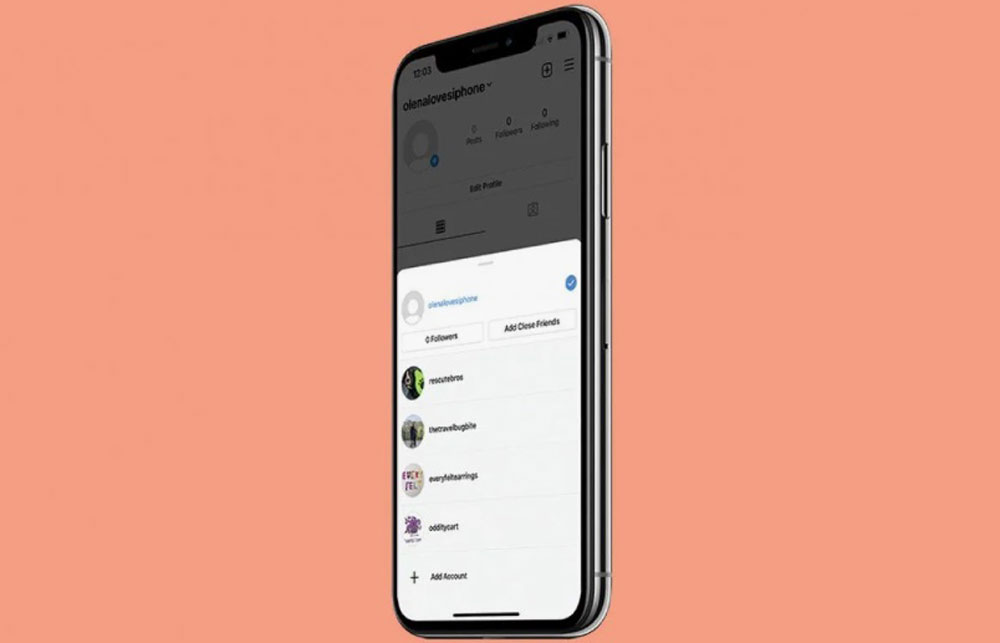
After you create a second Instagram account on computer, the main challenge is managing both simultaneously. Fortunately, there are several solutions that make Instagram multiple accounts desktop a smooth experience.· Using Native Browser and Instagram Features
- To understand how to add another Instagram account on PC, simply go to your profile, click on your profile picture in the top right corner, and select “Switch Account” to add the second one. This method makes it much easier to log in to two Instagram accounts.
- You can also use different user profiles in browsers like Chrome or Firefox. By using a separate open second Instagram profile on Chrome, each profile will have its own settings and cookies, allowing you to easily switch between accounts. Currently, Instagram browser support offers good functionality for these features.
· Using Third-Party Tools for Professional Management
- For professional management of Instagram accounts on a computer, you can use social media management tools like Shift, Rambox, Hootsuite, or Buffer. These applications allow you to manage several Instagram accounts seamlessly within a single environment. These tools help you manage accounts without an app (meaning without needing the mobile application) to schedule posts and switch between your accounts.
- Instagram desktop login allows you to use a larger screen for better post editing and management. In this scenario, Instagram web multiple accounts work very well.
Supplementary Tips & Tricks for Optimal Usage of Instagram Second Account
The process to create a second Instagram account on computer goes beyond just the initial sign-up; it’s about mastering the management. Using these techniques, managing two Instagram accounts on a desktop helps you track your activities professionally and efficiently. For those looking for Instagram for business desktop, these tools act as an Instagram account manager PC, making things much easier. With the switch Instagram accounts browser functionality, you can navigate between your personal and business accounts with just one click.- Post from a Computer: Did you know you can post directly from your desktop without a third-party tool? Simply go to the Instagram website or the Windows app and click on the “Create New Post” button to upload your images or videos, add a caption and hashtags, and publish.
- Set a Password for the Second Account: If you created your secondary account as a “sub-account” without its own separate password, you must set one to access it on a desktop. Go to the mobile app, navigate to Account Center, then Security, and set a new password for your account. After this, the switching feature on the web will be activated.
- Account Limit: Similar to the mobile app, you can link up to 5 accounts on the desktop version. To add more accounts beyond this limit, you must use alternative methods like separate browser profiles or different browsers.
 In summary
set up a new Instagram profile from desktop is not only possible but can also transform your user experience when done with the right tools. This allows you to easily separate your personal and professional accounts and manage each with its own strategy.
This action gives you the freedom to use a larger screen and more advanced management tools.
Are you Team “Everything on Mobile” or a die-hard desktop fan? Let us know how you juggle multiple IG pages! What’s your go-to method for handling multiple Instagram accounts on a computer? Share your secrets about “How to create a second Instagram account on computer?”, we are all ears!
In summary
set up a new Instagram profile from desktop is not only possible but can also transform your user experience when done with the right tools. This allows you to easily separate your personal and professional accounts and manage each with its own strategy.
This action gives you the freedom to use a larger screen and more advanced management tools.
Are you Team “Everything on Mobile” or a die-hard desktop fan? Let us know how you juggle multiple IG pages! What’s your go-to method for handling multiple Instagram accounts on a computer? Share your secrets about “How to create a second Instagram account on computer?”, we are all ears!
 Can I create a second Instagram account on my computer?
Yes, you can create a second Instagram account using a web browser.
How do I create a second account on my PC?
First, go to the Instagram website > Log out of your current account > Click on “Sign up.”> Enter a new email or phone number and follow the prompts to complete the registration.
Can I switch between accounts on the web version?
Yes, the Instagram web version now allows switching between multiple accounts, just like the mobile app. You can add and switch accounts without logging out.
Why can’t I create a new Instagram account on PC?
If you’re unable to create a new account on PC, it could be due to: using the same email/phone number, browser issues, or Instagram temporarily limiting account creation from your IP.
Can I manage both accounts from one browser?
Yes, but to access another account, you’ll need to log out of one or use different browser profiles.
Can I create a second Instagram account on my computer?
Yes, you can create a second Instagram account using a web browser.
How do I create a second account on my PC?
First, go to the Instagram website > Log out of your current account > Click on “Sign up.”> Enter a new email or phone number and follow the prompts to complete the registration.
Can I switch between accounts on the web version?
Yes, the Instagram web version now allows switching between multiple accounts, just like the mobile app. You can add and switch accounts without logging out.
Why can’t I create a new Instagram account on PC?
If you’re unable to create a new account on PC, it could be due to: using the same email/phone number, browser issues, or Instagram temporarily limiting account creation from your IP.
Can I manage both accounts from one browser?
Yes, but to access another account, you’ll need to log out of one or use different browser profiles.
2026 Practical Update
Creating another Instagram account from a computer is useful for separating personal, business, niche, or testing activity. Before creating it, decide whether the account needs a unique email, phone number, username style, profile photo, and recovery method. Clean setup prevents login confusion later.
Before You Try It
- Use a recovery email or phone number you will keep.
- Pick a username that matches the account purpose.
- Save login details in a password manager.
- Set up two-factor authentication after creation.
- Keep business and personal notifications separate.
Quick Answers
Can I manage multiple accounts on desktop? Yes, but switching is usually smoother when each account has clear login details.
Should a second account use the same email? Use separate recovery details when the account has business or long-term value.
Related Instagram Guides
For more context and next steps, these Notisave guides cover closely related Instagram questions and tools.
- (5) Clever Methods to Read Instagram Messages without Being Seen in 2026
- Can Business Instagram See Who Viewed Profiles?
- Can You See Who Views Your Instagram Highlights?
- How Can You Use Different Fonts on Instagram?
- Copy Instagram Caption
Also read: How to Copy Someone's Instagram Captions? (4 Easy Tricks That Work).










Related Posts



Stay Informed With the Latest & Most Important News
Previous Post
Next Post






Loading Next Post...
BTC
Hello, your content is great
Nikku 01
Hello
notisave
Hi can i help you?