

Now Reading: How to Add Auto Captions on Instagram Stories Free in 2026?
1
-
01
How to Add Auto Captions on Instagram Stories Free in 2026?


How to Add Auto Captions on Instagram Stories Free in 2026?
Scrolling through Instagram Stories with the sound off? Most people watch Stories without audio, whether they’re in a meeting, commuting, or just chilling. That’s why this article comes in with all the insights you need on “How to Add Auto Captions on Instagram Stories Free in 2026”. Want to keep your audience hooked, reach more people, and make your content inclusive and clear? Let’s get you set up so your Stories speak louder than ever!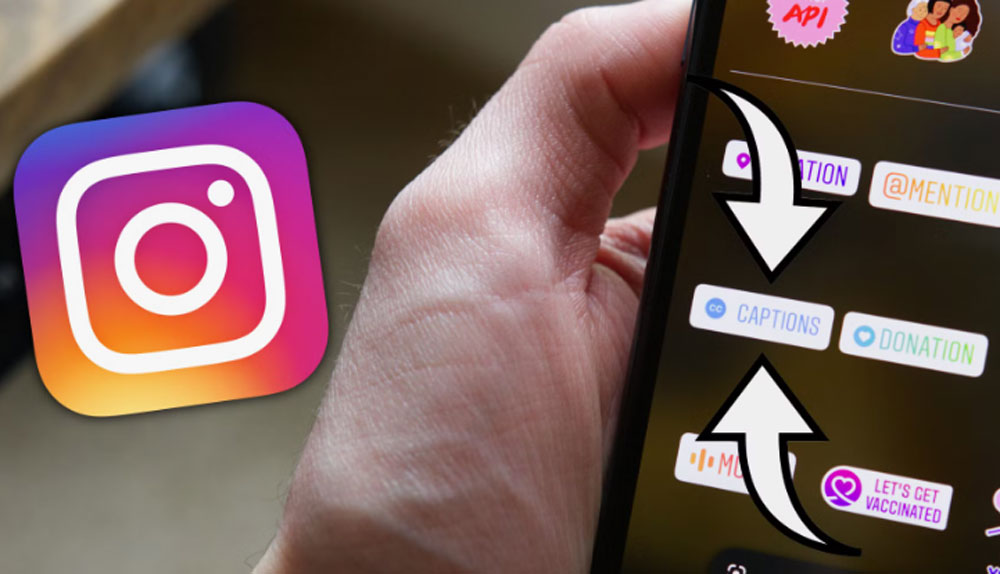
(2) Methods to Add Auto Captions on Instagram Stories in 2026
Auto captions are one of the smartest ways to boost engagement, increase Accessibility, and enhance viewer retention. Whether you’re looking for a quick native solution or a fully customizable option, there are two main ways to enable automatic captions on Instagram Stories in 2026:- Use Instagram’s free built-in Captions sticker for quick, automatic subtitles.
- Leverage third-party captioning apps like Captions AI for enhanced accuracy and styling.
· Using Instagram’s Native Captions Sticker
Using the Captions sticker in the Instagram app is a free and easy way to add captions. This built-in feature listens to your video’s audio and auto-generates captions, improving the viewing experience for audiences watching without sound or those with hearing difficulties:- Open the Instagram app and tap the + icon or swipe right from your feed to access the Story camera.
- Upload or capture the image or video you want to share with your followers.
- Tap the Sticker icon (square smiley face) at the top of the screen.
- Select the Captions sticker from the options.
- Instagram will automatically transcribe the audio into Instagram Story captions.
- Tap on the captions to edit any transcription errors, change the font style, or reposition the text on your screen.
- Share your Story with your followers or your Close Friends list.
· Third-Party Apps for Auto Captions (2 Options)
If the native Captions sticker is unavailable on your Instagram app, don’t worry. You can still add auto captions on Instagram Stories for free in 2026 by using:- Free online caption generators or apps that create auto subtitles.
- Apps that embed open captions (burned-in subtitles) directly into your video.
- Upload the captioned video to your Story as usual.
ü Using Captions AI (Auto Captions)
For those who want more control over style, accuracy, and branding, third-party caption apps like Captions AI are excellent choices to activate automatic text on Instagram Stories. These apps go beyond Instagram’s native Captions sticker by offering advanced editing features and better support for diverse needs:- Access to a wider variety of caption font styles for cohesive branding and visual appeal.
- Enhanced transcription performance for improved caption accuracy, even in noisy environments or with fast speech.
- Fine-tuned control over caption timing to sync captions perfectly with speech.
- Support for multiple languages, enabling multilingual captions for diverse audiences.
- Various templates and styling options to elevate your Instagram Stories captions for greater engagement and Accessibility.
ü CapCut (Auto Captions + Video Editing)
For creators seeking professional editing to add auto captions on Instagram Stories for free in 2026, CapCut is a top choice:- Auto-captioning: CapCut’s AI-driven auto captions transcribe speech accurately, enhancing storytelling and content accessibility.
- Caption customization: Use different text styles, fonts, colors, and animations to make subtitles visually appealing, boosting your Story’s visual communication.
- Video trimming and resizing: Quickly convert long videos into short clips optimized for Instagram’s 9:16 aspect ratio, perfect for Stories and Reels.
- Subtitle translation: Reach a global audience by translating captions into multiple languages, enhancing multilingual content marketing.
- Text-to-speech functionality: Add voiceovers without recording, increasing content versatility.
- Filler word removal: Automatically clean up your captions by removing filler words, improving caption clarity, and viewer retention.
- Optimized exporting: Export your videos in Instagram-friendly formats with customizable quality and size.

How to Enable Automatic Captions on Instagram Stories?
Boost your Instagram Story and Reel engagement by turning on automatic captions. Follow these simple steps to enable captions for both creators and viewers:- Open your Instagram profile and tap the menu icon (three horizontal lines).
- Go to Settings & Activity, then select Accessibility & Translations.
- Tap Captions and Translations.
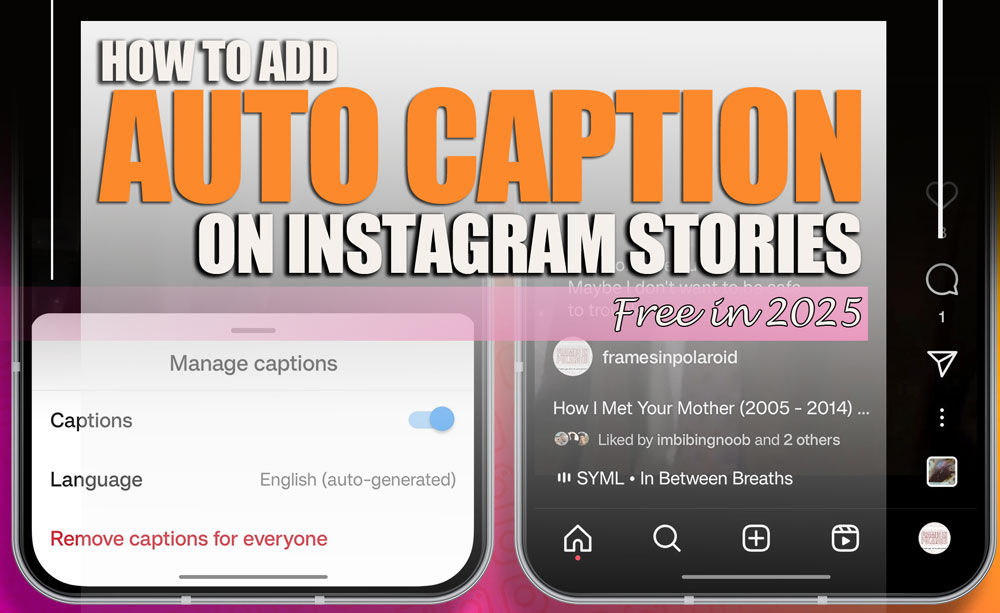
- Toggle Automatic Captions and Caption Translation features ON to allow Instagram to automatically generate captions on your videos. This helps increase your content’s reach by making it accessible to people with hearing challenges and silent viewers alike.
- Navigating to Profile → Hamburger Menu → Settings → Account → Captions.
- Toggling Captions ON to automatically display subtitles when watching Stories and Reels.
The Bottom Line
Captions aren’t just text; they’re your Stories’ voice when the sound is off. By learning “How to Add Auto Captions on Instagram Stories Free in 2026?”, you open the door to wider audiences, deeper connections, and more meaningful engagement. So why wait? Let your Stories speak louder and brighter with captions today! How do you usually add captions for Stories, native tools, or third-party apps? What’s your favorite feature? Have you noticed a difference in engagement since you started using auto captions on your Stories? Share your experience! How to add subtitles to Instagram stories for free?
Use a free app to create auto-generated subtitles, then upload the captioned video to your Instagram Story.
How to add auto captions on Instagram stories for free in 2026 without third-party apps?
Simply use Instagram’s native Captions sticker to add automatic captions for free within the app.
How to use auto-generated captions on Instagram Reels?
Enable Automatic Captions in Instagram settings under Accessibility to have captions auto-generated on Reels.
Why is the caption sticker not showing on Instagram?
If the Captions sticker isn’t visible, update the app, check availability by region, or use third-party caption apps instead.
How to get auto captions on Instagram Stories?
Record or upload a video, tap the Sticker icon, then choose the Captions sticker to auto-generate subtitles.
How to add subtitles to Instagram stories for free?
Use a free app to create auto-generated subtitles, then upload the captioned video to your Instagram Story.
How to add auto captions on Instagram stories for free in 2026 without third-party apps?
Simply use Instagram’s native Captions sticker to add automatic captions for free within the app.
How to use auto-generated captions on Instagram Reels?
Enable Automatic Captions in Instagram settings under Accessibility to have captions auto-generated on Reels.
Why is the caption sticker not showing on Instagram?
If the Captions sticker isn’t visible, update the app, check availability by region, or use third-party caption apps instead.
How to get auto captions on Instagram Stories?
Record or upload a video, tap the Sticker icon, then choose the Captions sticker to auto-generate subtitles.
2026 Practical Update
Auto captions make Stories easier to watch without sound and more accessible for viewers. Always review the generated text before posting because names, slang, accents, and brand terms can be misread. Clear audio at the recording stage improves caption quality more than editing afterward.
Before You Try It
- Record in a quiet place when captions matter.
- Speak clearly and avoid talking over music.
- Review names, numbers, and product terms before publishing.
- Use readable caption placement away from buttons and stickers.
- Add manual text when auto captions miss important details.
Quick Answers
Why are auto captions inaccurate? Background noise, fast speech, music, and uncommon words can reduce accuracy.
Are captions worth adding? Yes. Many viewers watch Stories muted, and captions help them understand quickly.
Related Instagram Guides
For more context and next steps, these Notisave guides cover closely related Instagram questions and tools.
- (5) Clever Methods to Read Instagram Messages without Being Seen in 2026
- Can Business Instagram See Who Viewed Profiles?
- Can You See Who Views Your Instagram Highlights?
- How Can You Use Different Fonts on Instagram?
- Copy Instagram Caption
Also read: How To Download Instagram IGTV & Reels for All Devices?.










Related Posts


Stay Informed With the Latest & Most Important News
Previous Post
Next Post






Loading Next Post...